
Download Snip – Free Screenshot Capture & Annotation Tool
Overview
Snip, developed by Tencent Technology, is a lightweight, menu‑bar utility that makes screen‑capture tasks fast, reliable, and secure. Whether you need a full‑screen snapshot for a quick bug report or a precise region for a design mock‑up, Snip puts the power in your hands with a single click or keyboard shortcut. The app lives quietly in the status bar, represented by a discreet black icon, so it never interferes with your workflow.
Once activated, you can drag to select any area, resize the selection on the fly, and instantly see the pixel dimensions of the region you’re capturing. After the screenshot is taken, Snip opens a minimal editing canvas where you can add rectangles, ellipses, arrows, free‑hand brush strokes, and text annotations. Six colour choices—red, yellow, green, blue, black, and white—cover most basic markup needs, while line thickness and font size options give you a bit of flexibility without overwhelming the interface.
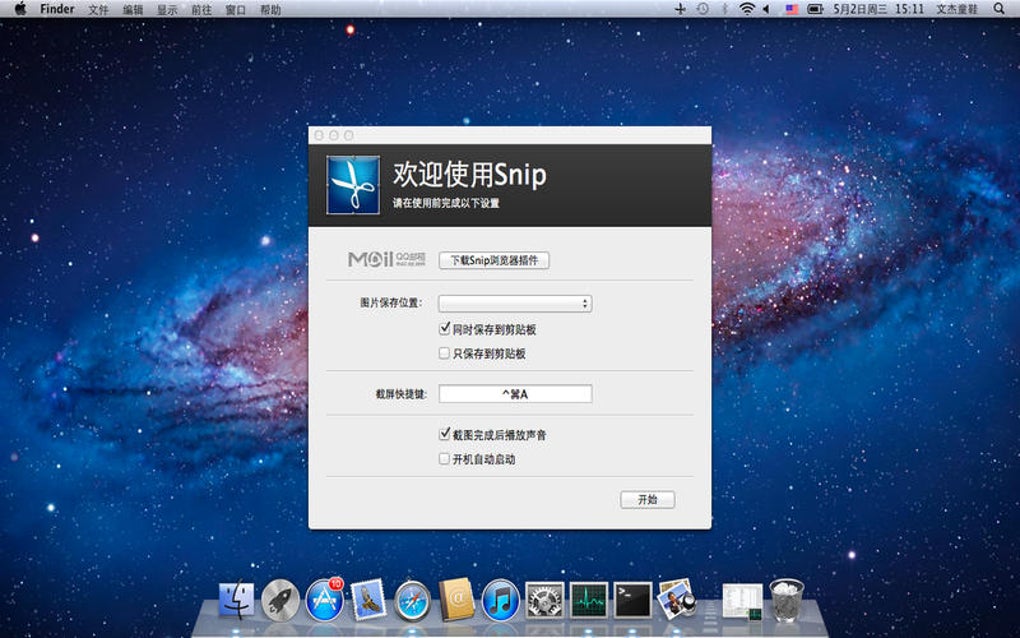
By default, Snip saves the final image to your desktop, but you can point it to any folder you prefer. Although the saving process is manual and the settings can feel a little hidden, the overall experience is designed for speed and simplicity, making Snip an excellent choice for students, support staff, and anyone who needs a free, secure screenshot solution for Windows or macOS.
Key Features & Annotation Tools
- Instant full‑screen, window, or custom region capture
- Menu‑bar access with a single click or customizable hotkey
- Live size indicator while selecting the capture area
- Built‑in annotation suite: rectangle, ellipse, arrow, brush, text
- Six colour palettes for each annotation type
- Three line‑thickness levels for geometric shapes
- Seven preset font sizes for text annotations
- Automatic detection of open windows for one‑click capture
- Customizable save location (desktop default)
- Free to download, no hidden fees or trial limitations
The feature set of Snip focuses on the essentials that most users need daily. While power users may miss advanced capabilities like blur tools or layered editing, the core functions are deliberately streamlined to avoid clutter. The annotation panel slides out of view when not in use, preserving screen real estate for your work.
Because the app is built on Tencent’s robust infrastructure, it benefits from regular security updates and a low memory footprint, ensuring that the capture process never slows down your system. For teams that require consistent branding, the six colour options and three thickness levels are sufficient to create clear, recognizable callouts without the need for external graphics software. Additionally, Snip’s simple file‑naming convention—timestamped by default—helps keep your screenshots organized automatically.
Installation, Usage & Compatibility
Step‑by‑Step Installation
- Visit the official Snip download page and click the Download for Windows or Download for macOS button.
- Run the installer (an .exe for Windows, .dmg for macOS) and follow the on‑screen prompts. The installer will place the app in your Applications folder (macOS) or Program Files (Windows) and automatically add the menu‑bar icon.
- When installation completes, grant the app permission to record your screen. On macOS, you’ll find this under System Settings → Privacy & Security → Screen Recording. On Windows, you may need to enable “Desktop capture” in the Settings > Gaming > Captures menu.
- Restart the application if prompted. The black Snip icon should now appear in the status/menu bar, indicating that the tool is ready for use.
How to Capture and Annotate
Using Snip is intentionally straightforward. Click the menu‑bar icon or press the default shortcut Ctrl + Shift + S (Windows) / ⌘ + Shift + S (macOS). Your cursor changes to a crosshair, and you can drag to define the capture region. As you resize the rectangle, a small overlay shows the exact pixel dimensions, helping you achieve precise cuts. Release the mouse button to capture; the image instantly appears in Snip’s annotation canvas.
From here, select an annotation tool from the toolbar: draw a rectangle to highlight a button, an ellipse to circle an icon, or an arrow to point out a specific area. Adjust the colour by clicking one of the six swatches, and change the line thickness (thin, medium, thick) if you’re using shapes. For text, click the “T” icon, type your note, then choose one of the seven preset font sizes.
When you’re satisfied, hit the Save button. Snip will write the file to your desktop unless you’ve changed the destination folder in the Settings menu (accessible via the gear icon in the toolbar). You can also copy the image directly to the clipboard by clicking the Copy button, which is handy for past‑and‑paste into emails or chat apps.
Supported Operating Systems
Snip runs on the following platforms:
- Windows 10 (64‑bit) and Windows 11
- macOS 10.14 (Mojave) and later, including Apple Silicon (M1/M2) via Rosetta 2 or native build
While Snip is currently a desktop‑only solution, the developers have hinted at a future mobile companion for Android and iOS. For now, Windows and macOS users can rely on a secure, regularly updated binary that respects system privacy settings.
Pros and Cons
- Pros:
- Free and lightweight – ideal for low‑spec machines
- Fast capture with live size indicator
- Simple annotation suite covers most everyday needs
- Menu‑bar integration keeps the workspace tidy
- Regular security updates from a reputable developer
- Cons:
- No automatic save – users must remember to click “Save”
- Saving options are hidden in a submenu, which can be confusing for beginners
- Limited annotation customization (only three line thicknesses and seven font sizes)
- No advanced editing features like blur, pixelate, or multi‑layer support
- Currently unavailable for mobile platforms
Frequently Asked Questions
Is Snip completely free or does it have a paid version?
Snip is 100 % free. There is no hidden subscription, trial period, or premium tier. All features listed in the application are available to every user after download.
Can I change the keyboard shortcut for capturing screenshots?
Yes. Open Snip’s Settings (gear icon), navigate to the “Hotkeys” tab, and assign a new combination for “Capture Screen”. The changes take effect immediately.
How secure is the data when I use Snip?
Snip does not upload images to the cloud; all captures remain on your local device unless you manually share them. The app follows standard OS permission models, and Tencent provides regular security patches to protect against vulnerabilities.
Can I set a default folder other than the desktop for saved screenshots?
Yes. In Settings, go to the “Saving” section and click “Browse” to select any folder you prefer. Remember to click “Apply” to confirm the new location.
Does Snip support high‑DPI displays?
Snip is fully DPI‑aware on both Windows and macOS. Screenshots retain the native resolution of high‑density monitors, ensuring crisp images for Retina and 4K displays.
Conclusion & Call to Action
In summary, Snip delivers a fast, free, and secure way to capture and annotate screenshots on Windows and macOS. Its menu‑bar design and keyboard shortcut make it instantly accessible, while the built‑in annotation tools cover the majority of everyday markup scenarios. Although the app’s saving workflow could be more intuitive and the annotation options are modest compared to premium competitors, the overall value is hard to beat for users who need a no‑frills screen‑capture solution. If you’re looking for a reliable utility that won’t clutter your desktop, adds a handful of useful editing features, and respects your privacy, Snip is worth a download today.
Ready to streamline your screenshot workflow? Download Snip now and start capturing with confidence—free, secure, and ready for every project.
Snip offers an elegant balance between simplicity and functionality. The core capture process is lightning‑fast, and the annotation tools, while basic, are more than sufficient for quick documentation. The main drawbacks are the manual save step and a slightly hidden settings menu, which can trip up new users. Overall, it earns a solid four‑star rating for being a dependable, free utility that respects user privacy.







